
Free Screen Recorder for Windows — Sismoo Screen Recorder
Record your screen with system sound, microphone and webcam, record audio to MP3, and snip, crop and annotate screenshots — all in one small app for Windows 11, 10 and 8.1.
ফ্রি স্ক্রিন রেকর্ডার — ক্লাস, টিউটোরিয়াল, মিটিং বা গেম এক ক্লিকে রেকর্ড করুন, স্ক্রিনশট কেটে লিখে শেয়ার করুন।
Windows 11 / 10 / 8.1 · Version 1.4.5 · 6.1 MB · No installer needed

A screen recorder, audio recorder and snipping tool in one
Simple enough for a first-time user, complete enough for teachers, trainers, YouTubers and support teams.
Record your screen
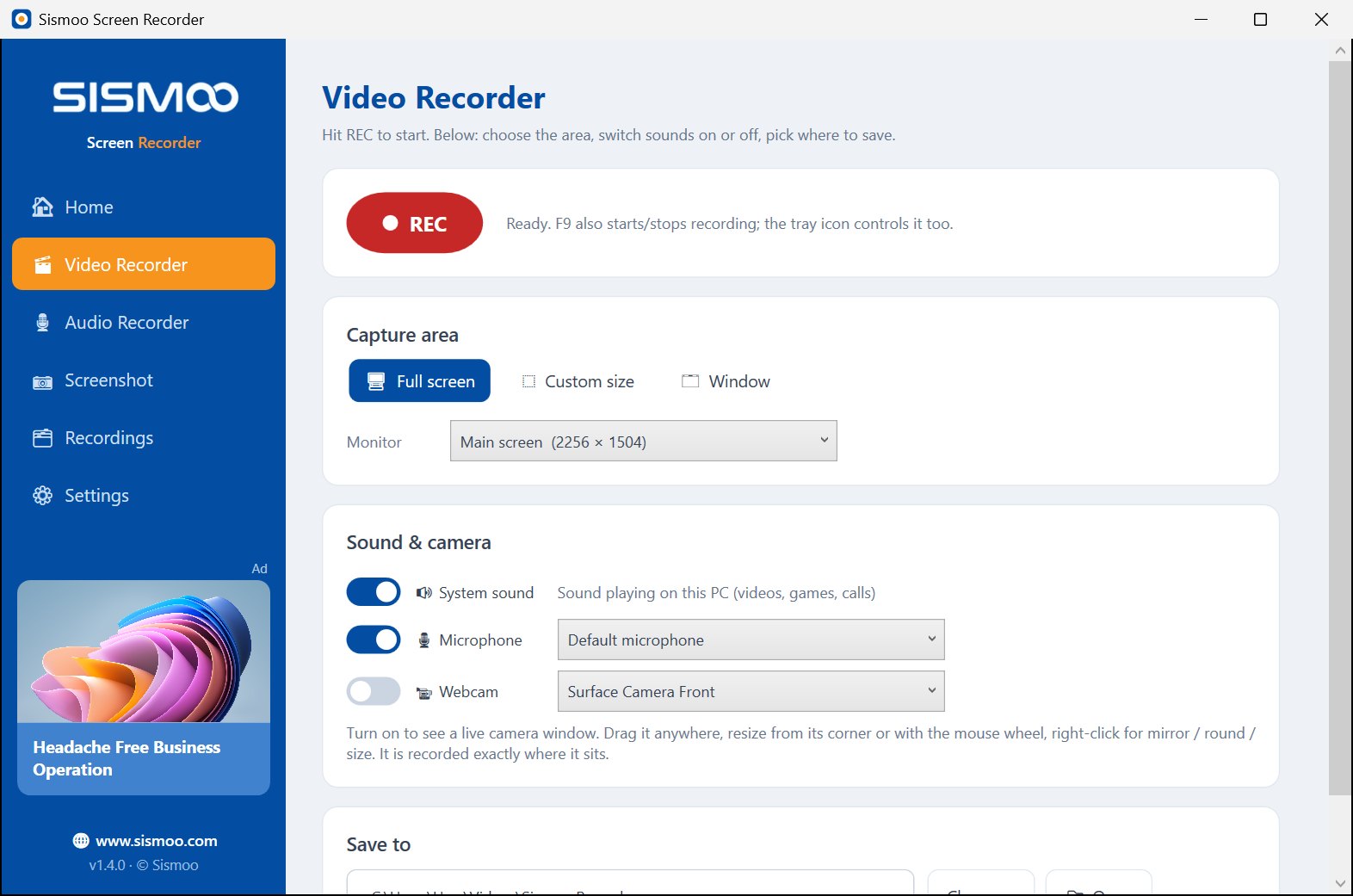
Full screen, one window or any area you drag-select (or an exact width × height). Smooth H.264 MP4 using your graphics card.
System sound + microphone
Record what your PC plays and your voice together. Turn either on or off even in the middle of a recording.
Webcam overlay
Show yourself in a movable camera window on top of the recording — great for tutorials, classes and presentations.
Audio recorder (MP3)
Record system sound and microphone straight to MP3 — meetings, calls, lectures, music.
Snipping tool
Press F8: the screen freezes and you snip a rectangle, a free-form shape, one window or the full screen.
Crop & annotate
Crop the picture, then add pen, highlighter, boxes, arrows and text — change the colour and size, click a text to edit it, drag to move it.
Recordings library
Find, play, rename and delete everything you captured, all in one place.
Hotkeys & tray
F9 start / stop, F10 pause / resume, F8 screenshot. A small floating bar shows the timer while you record.
See it in action


- Snipping tool: rectangle, free-form, window and full screen on a frozen screen
- Crop any screenshot in the editor (with undo)
- Text tool: click to edit, drag to move, colour and font size (12–72)
- Colour palette: one-click colours plus any colour you like
- Rename recordings and a REC button right at the top
- Fixed: edited screenshots now save exactly as you see them
- Fresh colourful look
Made for the way you work
Teachers & online classes
Record a lesson with your slides, your voice and your face, then share the MP4 with students.
YouTube & tutorials
Show how something works step by step — cursor and clicks are highlighted so viewers can follow.
Meetings & calls
Keep a copy of a Zoom, Google Meet or Teams call with both sides of the conversation.
Support & bug reports
Snip the problem, draw an arrow and a note, copy it and paste it into chat or email.
How to record your screen on Windows
Download
Click the download button. It is a single .exe file — no installer, nothing extra.
Open it
Double-click SismooScreenRecorder-1.4.5.exe. If Windows shows “Windows protected your PC”, click More info → Run anyway.
Press REC or F8
Press REC (or F9) to record a video, or F8 to snip a screenshot. Press F9 again to stop and save.
Download Sismoo Screen Recorder
Version 1.4.5 · released 9 Nov 2026 · Windows 11 / 10 / 8.1 · requires .NET Framework 4.8 (built into Windows 10 and 11)
Not sure? Take the 64-bit version.
Frequently asked questions
Is Sismoo Screen Recorder free?
Yes. Download it and use it — no sign-up, no time limit, and no watermark unless you add your own.
How do I record my screen with sound on Windows 10 or 11?
Open the app, go to Video Recorder, choose Full screen, Custom size or Window, switch on System sound (and Microphone if you want your voice), then press REC or F9. Press F9 again to stop — the MP4 is saved automatically.
How do I take a screenshot of part of the screen?
Press F8. The screen freezes and a toolbar appears: pick Rectangle, Free-form, Window or Full screen and select the area. The snip opens in the editor where you can crop it, draw on it and add text, then save or copy it.
Can I edit the text I added to a screenshot?
Yes. With the Text tool, click a text to change it, drag it to move it, and pick a colour and size from the toolbar.
Can it record Zoom, Google Meet or Teams calls?
Yes. Record the meeting window or the full screen with System sound and Microphone on, so both sides of the call are in the video. Always tell the other people that you are recording.
Which Windows versions are supported?
Windows 11, Windows 10 and Windows 8.1. It needs .NET Framework 4.8, which is already built into Windows 10 (May 2019 update or later) and Windows 11. On Windows 8.1, install .NET Framework 4.8 from Microsoft first if the app does not open. The live webcam window and window-only recording need Windows 10 or later.
64-bit or 32-bit — which one do I need?
Almost every PC today is 64-bit, so use the main download. To check: Settings → System → About → System type. Take the 32-bit version only if it says “32-bit operating system”.
Where are my recordings saved?
In Videos → Sismoo Recorder by default. You can pick another folder on the Video Recorder page or in Settings, and open the folder straight from the app.
Windows says “Windows protected your PC”. Is it safe?
Yes. Windows shows this for new apps it has not seen many times yet. Click More info and then Run anyway. Only download the app from sismoo.com.
Does it upload my recordings anywhere?
No. Everything is recorded and saved on your own PC. The app only checks sismoo.com for news and offers shown in the sidebar.
Record your first video today.
Free, no sign-up, no watermark — just download and press REC.
Download Sismoo Screen Recorder