
Free Screencast Software for Windows — your screen, your voice, your face
Record tutorials, online classes and product demos with microphone, system sound and a webcam overlay. Saved as MP4, ready for YouTube, Classroom or Facebook — no watermark, no time limit.
Windows 11 / 10 / 8.1 · v1.4.5 · 6.1 MB
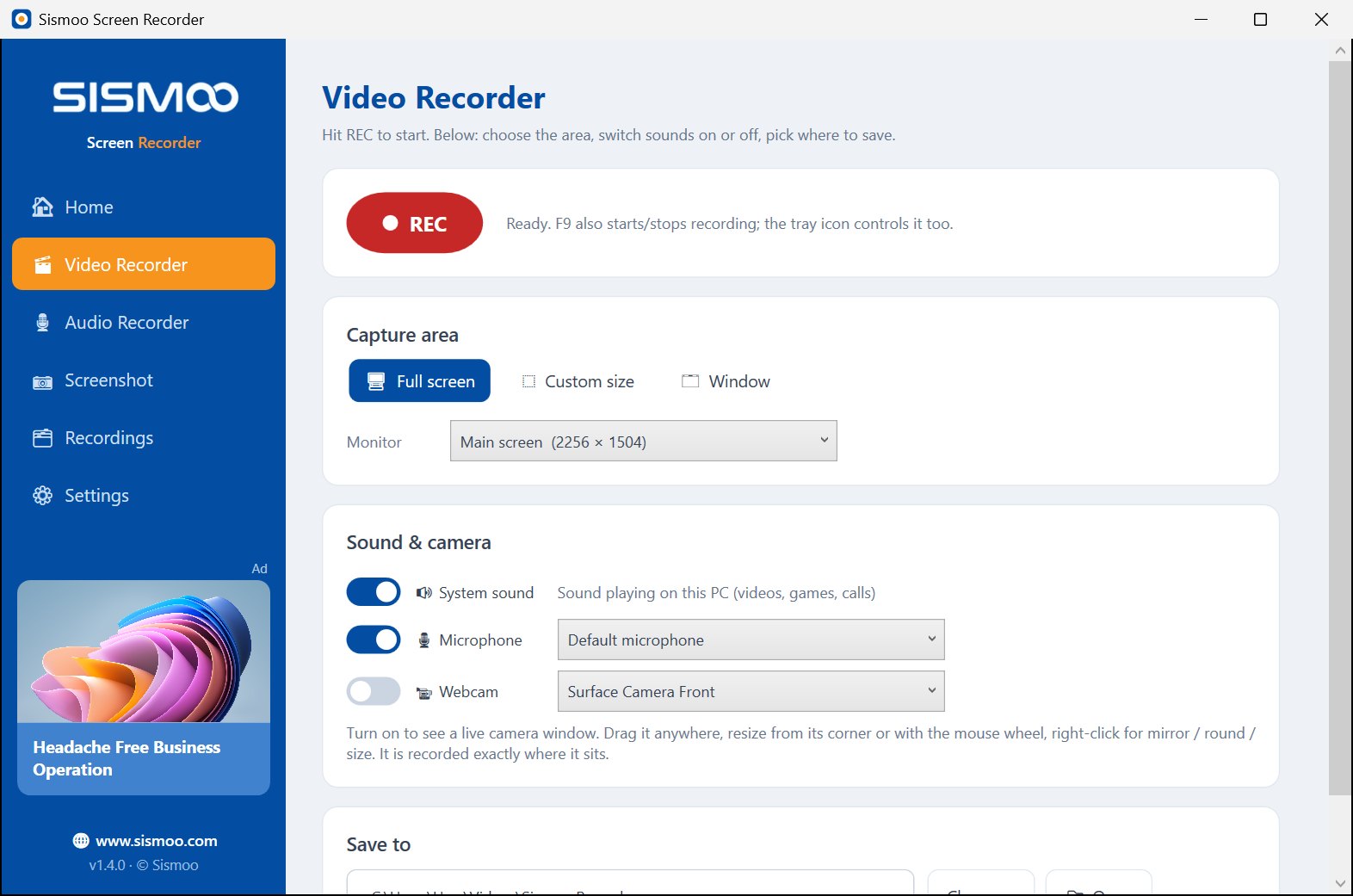
How to make a screencast in 5 steps
-
1
Plan in one line
Write what the viewer will be able to do at the end. Close apps and notifications you do not need on screen.
-
2
Choose the area
In Video Recorder pick Full screen, Window (just the app you are showing) or Custom size (for example 1280 × 720 for YouTube).
-
3
Turn on your voice and face
Switch on Microphone. Switch on System sound if the app plays audio. Switch on Webcam to show yourself in a movable corner window.
-
4
Press REC (F9)
A 3-second countdown starts. F10 pauses while you get ready for the next step; F9 again stops and saves an MP4.
-
5
Check and share
The MP4 is saved as soon as you stop — play it, rename it or open its folder straight from the app, then upload it to YouTube, Google Classroom, Facebook or Drive.
Tips for a better screencast
Clicks are highlighted
The cursor and every click are shown, so viewers never lose track.
Pause instead of re-recording
Use F10 between steps; the final video has no dead time.
Mute on the fly
Turn the mic or system sound off and on during the recording without stopping.
Auto-stop
Set a time limit in Settings so long lessons stop on their own.
Download Sismoo Screen Recorder
Version 1.4.5 · released 9 Nov 2026 · Windows 11 / 10 / 8.1 · free · no installer
Not sure? Take the 64-bit version.
Screencast questions
What is a screencast?
A screencast is a video recording of your computer screen, usually with your voice explaining what you do — used for tutorials, lessons, product demos and bug reports.
What is the best free screencast software for Windows?
Sismoo Screen Recorder is free screencast software for Windows 11, 10 and 8.1 that records the screen with system sound, microphone and a webcam overlay, without a watermark or sign-up. It also takes screenshots and records MP3 audio.
How do I make a screencast with my voice and webcam?
Open Sismoo Screen Recorder, go to Video Recorder, turn on Microphone and Webcam, choose the area and press REC (F9). Press F9 again to stop and save the MP4.
Which format is the screencast saved in?
MP4 (H.264), which plays everywhere and uploads directly to YouTube, Facebook, Google Drive and Classroom.
Is there a time limit or watermark?
No time limit and no watermark. You can optionally add your own text watermark in Settings.
All features of Sismoo Screen Recorder → · Free screenshot app →